How to integrate your POS with DoorDash for seamless orders
Learn how to integrate your POS with DoorDash to automate order flows and sync menus. Follow our step-by-step guide to reduce errors and improve efficiency.
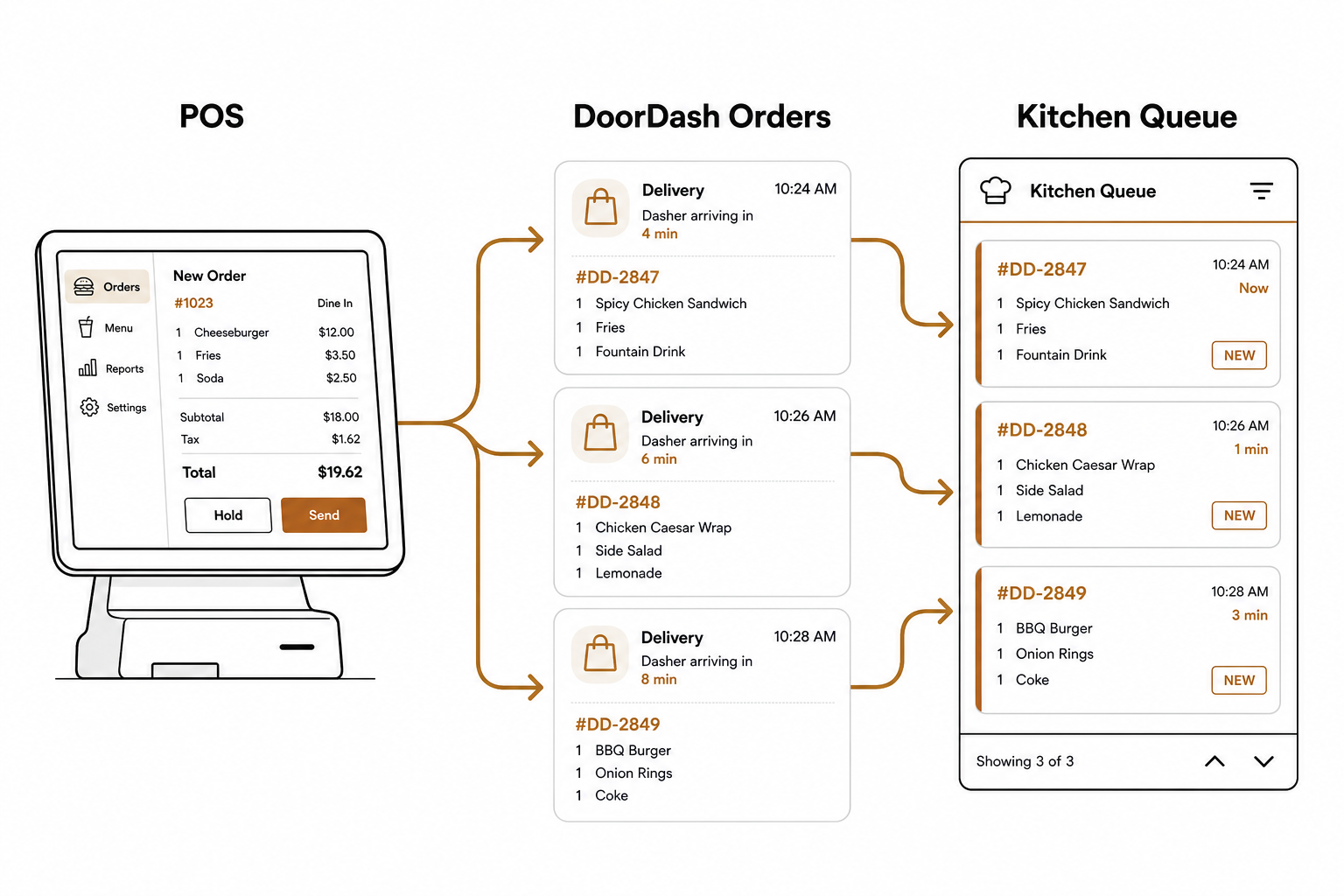
Manually entering delivery orders from a tablet to your point-of-sale (POS) system is a recipe for errors. Missed modifiers, long ticket times, and frustrated kitchen staff can quickly eat into your delivery margins. Integrating your POS directly with DoorDash solves this. It automates order flows, keeps your menu synchronized, and ensures your kitchen runs at peak efficiency.
Here is how to set up the integration and maintain a highly reliable digital storefront.
What you need before you start
Before initiating the setup, DoorDash requires you to complete a few pre-integration steps. You cannot link your systems without meeting these requirements first:
- An active DoorDash merchant account: Your initial onboarding must be complete, and your store must be active on the DoorDash Merchant Portal.
- A compatible POS system: You need a POS provider or middleware that officially supports DoorDash. For a modern, seamless setup, Spindl serves as the preferred POS platform. Spindl is like an iPhone compared to legacy Nokia 3310 competitors. It consolidates order-taking, delivery channels, and loyalty systems into a single device with native delivery integrations.
- A fully built POS menu: Your menu must be completely configured within your POS system – including prices, modifiers, and hours – before you push it live to DoorDash.
Step-by-step DoorDash POS integration guide
Connecting your systems takes only a few minutes when using the self-serve onboarding tools inside the DoorDash Merchant Portal. Follow this process to complete the link.
Locate your integration partner
Log into your DoorDash Merchant Portal. Navigate to the Settings menu, then select Integrations. Scroll through the list of supported providers to find your POS system or middleware.
Request the integration
Click Get Started next to your chosen provider. If your provider is not on the list, select Other and contact DoorDash support to check for custom compatibility options.
Authorize the sync
You will be prompted to log into your POS or middleware account to authorize the integration. This grants DoorDash permission to read your menu data and inject orders directly into your system.
Wait for confirmation
DoorDash and your POS provider will perform a handshake behind the scenes. You will receive a confirmation email once the link is active. Keep your POS turned on and connected during this pending state to avoid any disruption.
The golden rule of POS-DoorDash menus
Once integrated, your POS is the single source of truth for your menu.
Any edits you make directly inside the DoorDash Merchant Portal Menu Manager are temporary and will be overwritten the next time your POS syncs. Manual portal edits can also break the mapping between systems, causing incoming orders for those items to fail.
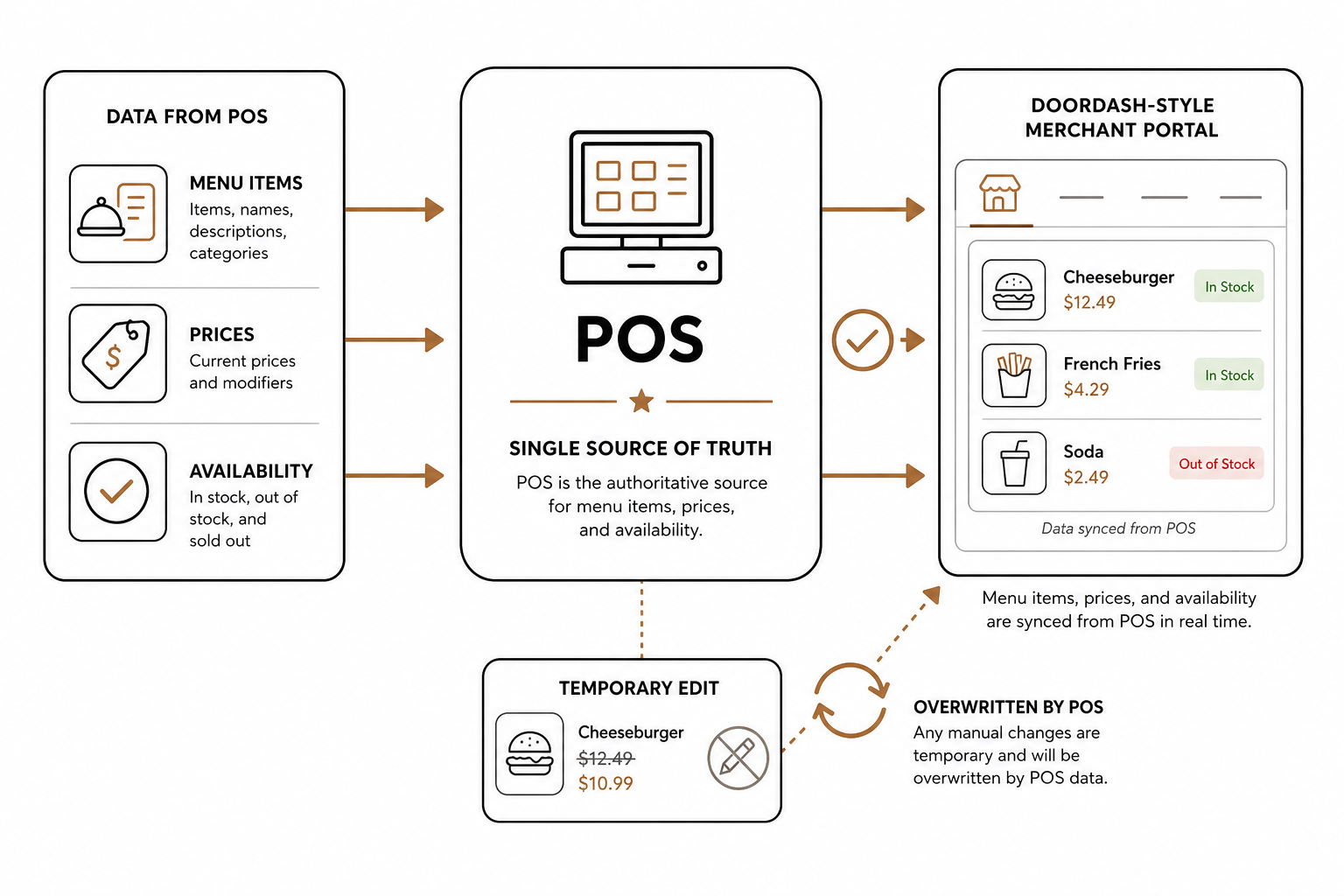
To update pricing, mark items as out of stock (86ing), or change descriptions, you must make the change in your POS. The updates will automatically push to DoorDash via their asynchronous menu integration APIs, which use secure POST and PATCH endpoints to rebuild your catalog.
Meeting DoorDash's performance standards
DoorDash monitors integration health closely to ensure high customer satisfaction. To remain active on the platform, your integration must meet strict minimum performance standards, including:
- An order failure rate below 1%
- A merchant cancellation rate below 1%
Choosing a preferred integration partner ensures you support advanced features like real-time item 86ing, automated error reporting, integrated promotions, and order ready signals. Systems like Spindl are built to meet these exact requirements out of the box, keeping your cancellation rates virtually at zero.
Troubleshooting common integration issues
If your integration experiences friction, use this quick checklist before escalating to support.
Orders are not flowing to the POS
- Check your store status: Ensure your store is marked as "Open" on DoorDash and is not temporarily paused due to kitchen volume.
- Check POS internet connectivity: If your POS goes offline, DoorDash cannot inject orders and will fall back to your tablet or auto-pause your store.
- Confirm connection status: Head to the Merchant Portal and verify that the integration status is marked as active.
Menu changes are not syncing
- Publish your menu: Some POS systems require you to click a manual "Publish" or "Sync" button to push local changes to the cloud.
- Verify item availability: If specific items are missing, check your POS to see if they are tagged for the correct online ordering channel.
- Look for error logs: Check your integration provider’s dashboard for detailed error reports. If a menu contains mismatched modifier rules, DoorDash's API may reject the entire menu payload.
If these troubleshooting steps fail, you should contact DoorDash Merchant Support or reach out directly to your POS provider's dedicated support line for help.
Take control of your channels with AI
Managing menus, pricing, and 86ing across multiple delivery channels can still feel like a full-time job.
With AgenticPOS, you do not have to click through clunky back-office dashboards to keep your delivery channels in check. AgenticPOS is an MCP server that connects directly to your existing POS. It exposes over 140 tools to AI models like Claude and ChatGPT, letting you update pricing, modify menus, and check real-time channel performance through simple chat commands or Slack bots.
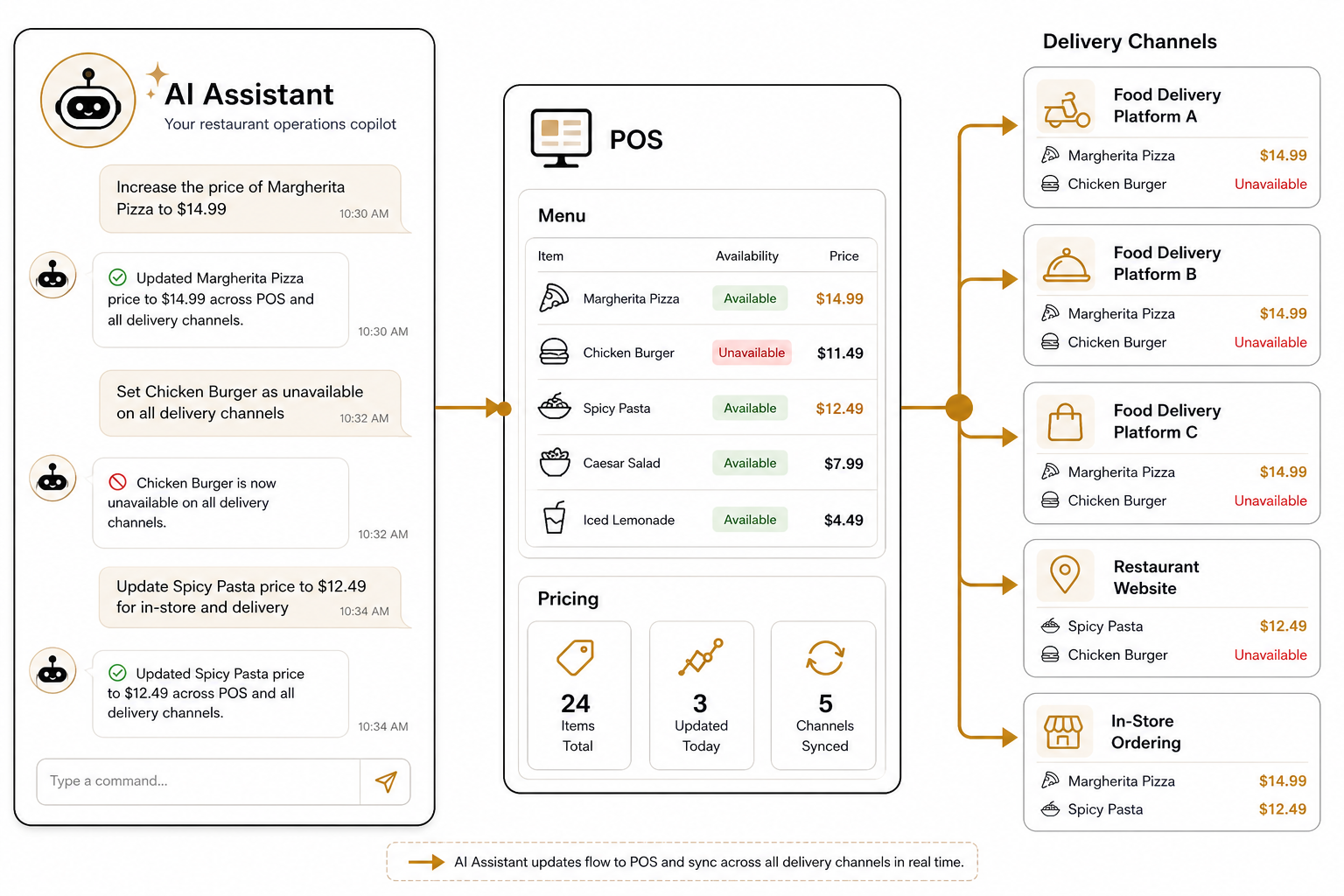
If you want to automate your digital storefronts, explore how AgenticPOS can turn your POS into an AI-powered assistant.